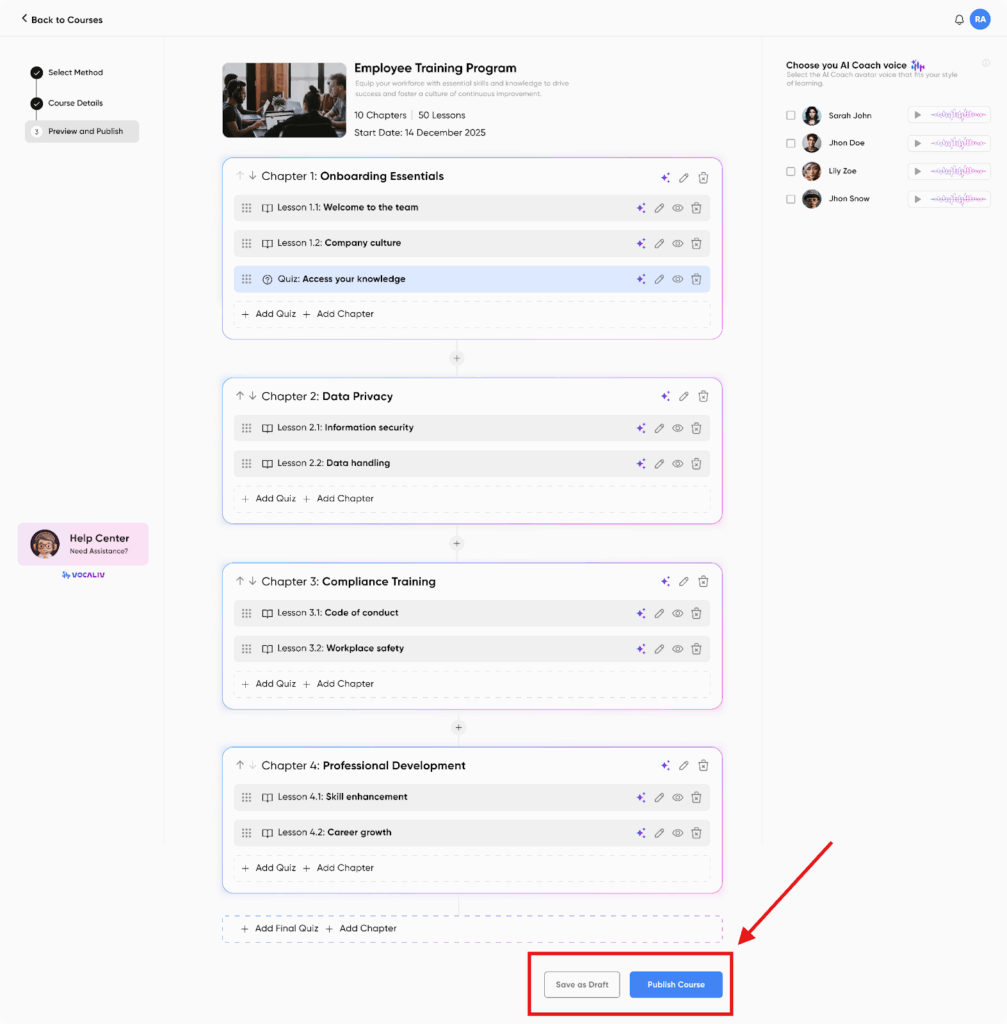
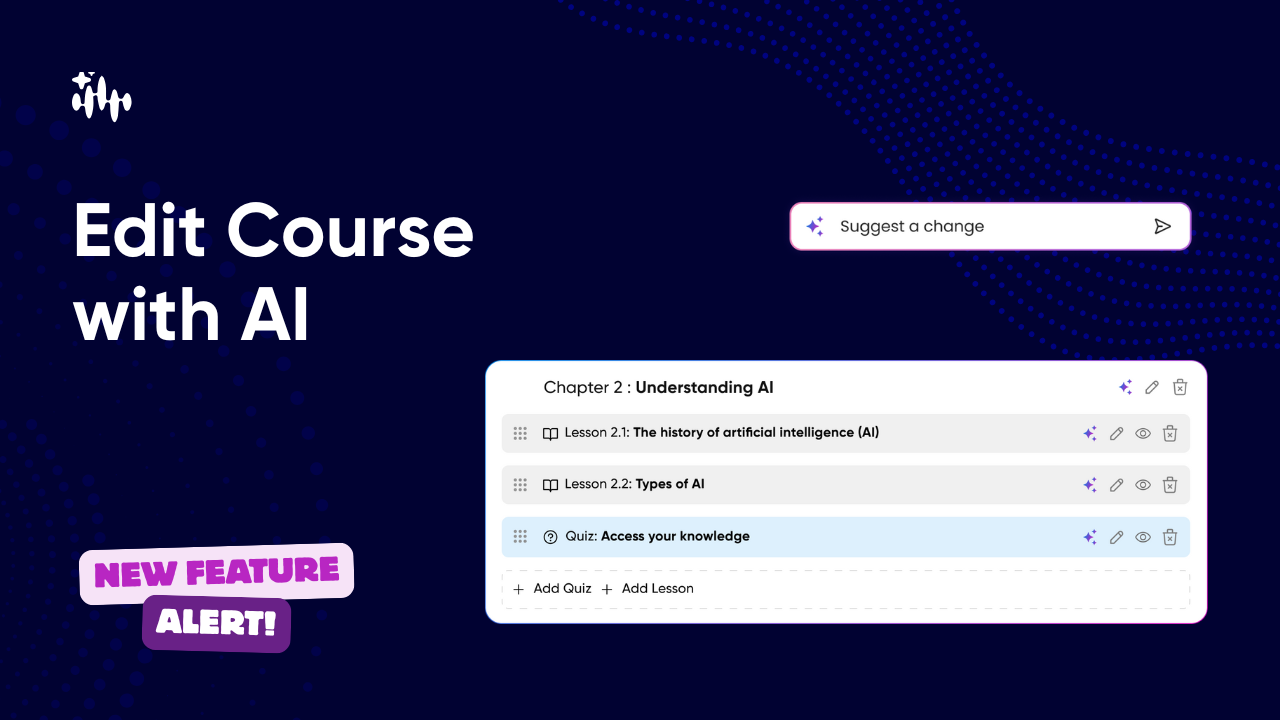
Make fast, confident edits to any course using AI — or do it manually. Regenerate chapters & lessons, add quizzes, reorder content with drag-and-drop, and pick the AI Coach voice for course delivery — all from the new Course Editor screen.
What this feature lets you do (at a glance)
- 🔁 Regenerate any chapter or lesson with AI (one click).
- ✏️ Manually edit any chapter/lesson with the inline edit icon.
- ↕️ Drag & drop lessons and chapters to change sequence instantly.
- ➕ Generate a new chapter with AI by typing a short description.
- ➕ Add lessons & quizzes inside any chapter (AI-generated or manual).
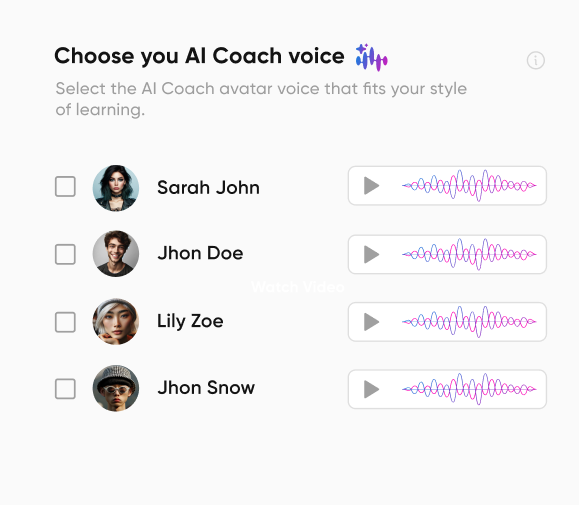
- 🎙️ Choose your AI Coach voice (top-right): preview voices, select the course voice.
Step-by-step: How to edit a course with AI
1. Open the Course Editor
From Courses → [Select Course] → Edit, you’ll land on the preview & publish screen showing chapters and lessons.
2. Regenerate a chapter or lesson with AI
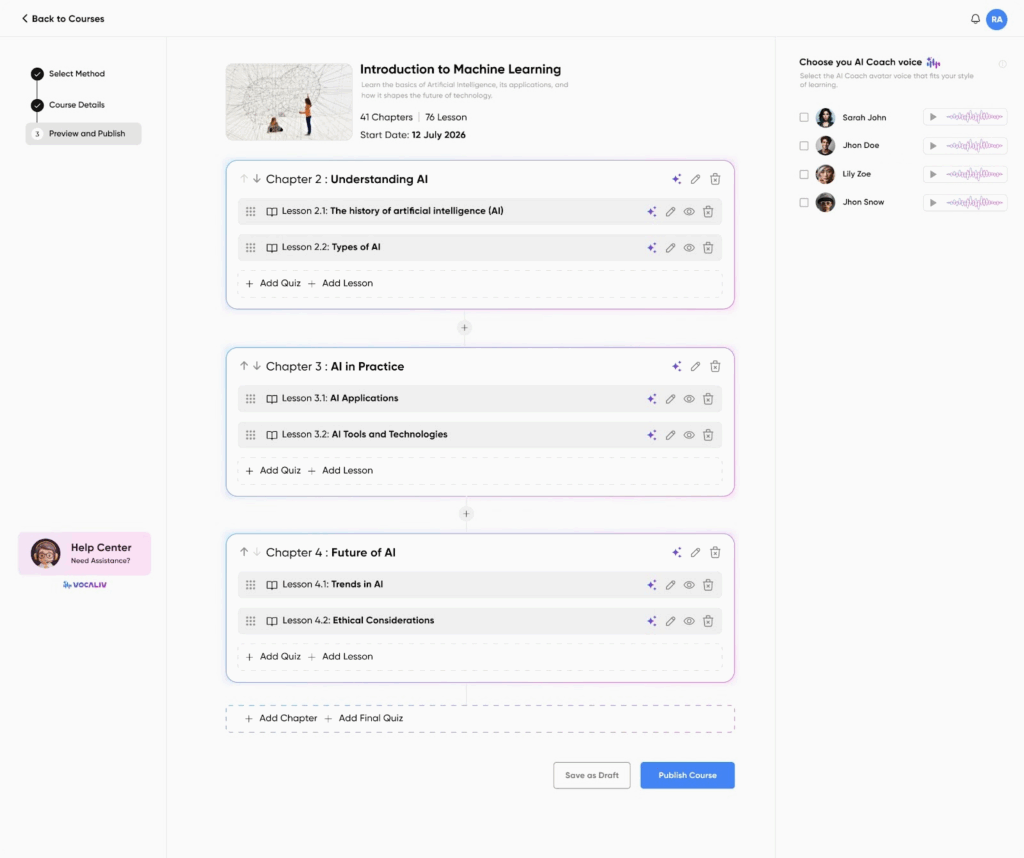
- Click the AI icon (spark) on any chapter or lesson card.
- A small prompt box appears: refine the idea or leave the default prompt.
- Click Regenerate → AI rewrites the chapter/lesson (keeps structure intact).
Use when: you want fresh content, clearer explanations, different tone, or updated examples.
Example prompt (regenerate chapter):
“Rewrite this chapter for mid-level engineers. Use practical examples
3. Edit manually
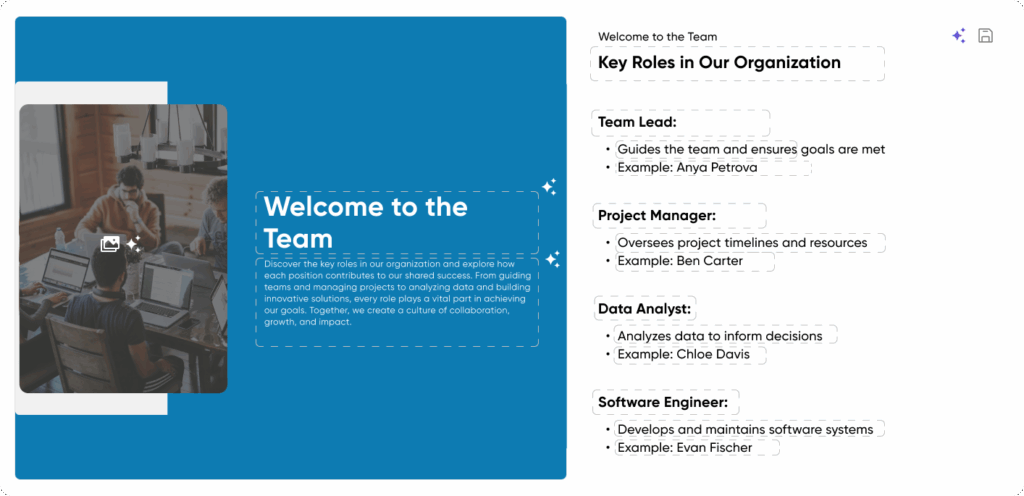
- Click the pencil/edit icon to open the inline editor—change headings, add images, adjust text.
- Save edits; changes remain in draft until you publish.
4. Add a new chapter using AI
- Click the + icon between chapters.
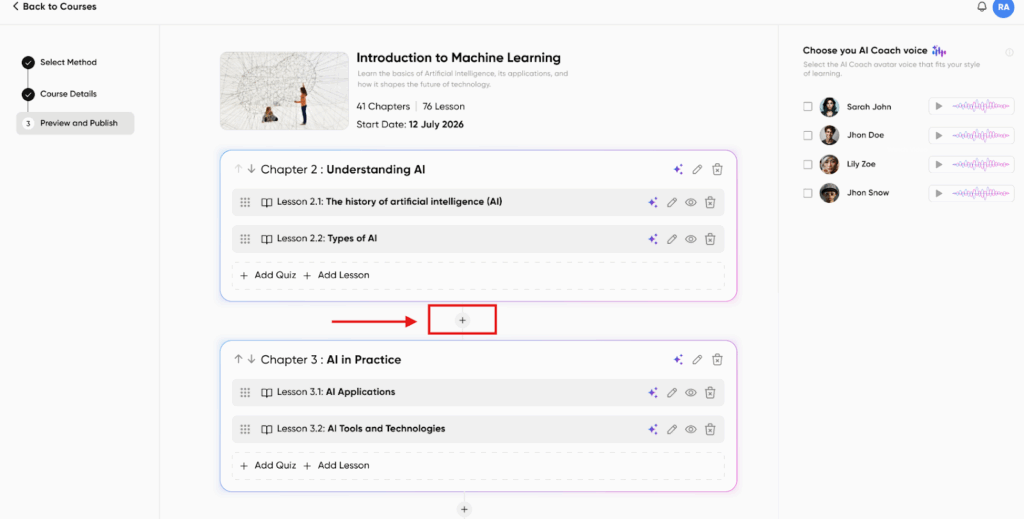
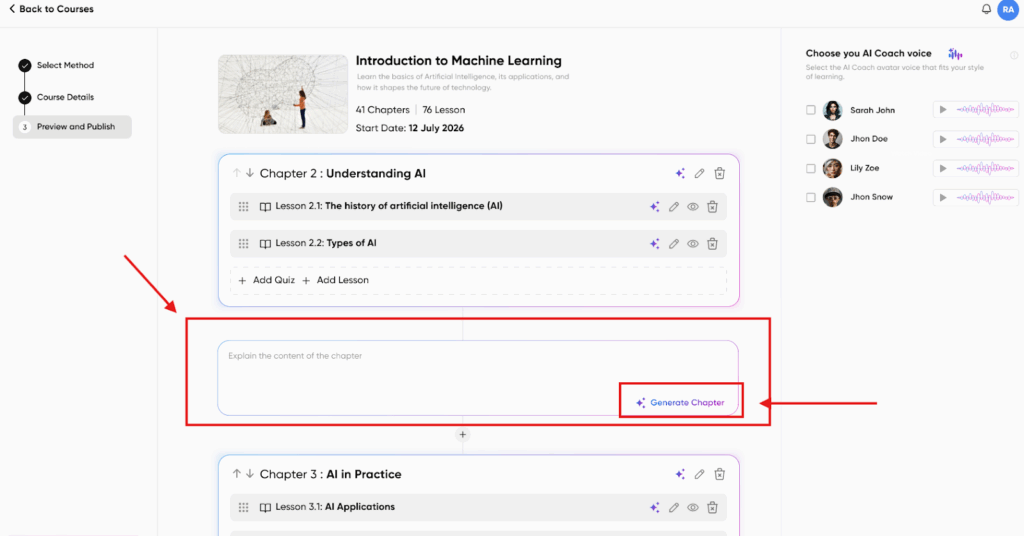
- In the “Describe this chapter” box, type a short description of the chapter theme.
- Click Generate Chapter → AI creates chapter title + suggested lessons.
Example description:
“Testing strategies for web applications: unit tests, integration tests, CI tips.”
5. Add lessons or quizzes inside a chapter
- Use Add Lesson or Add Quiz inside any chapter.
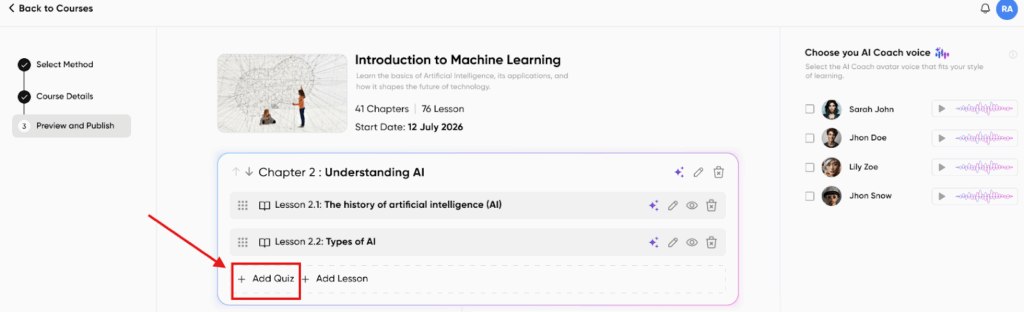
- For quizzes, choose AI Generate to auto-create questions and answers with auto-grading enabled.
- Option to manually adjust questions before publishing.
6. Reorder content with drag & drop
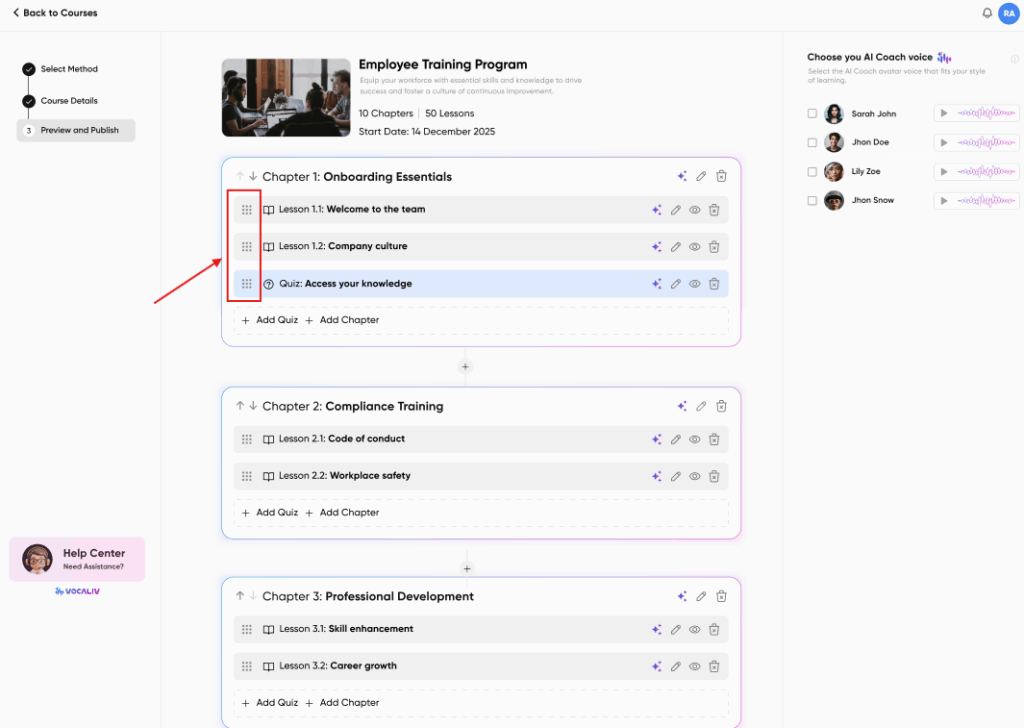
- Grab the dotted drag handle on any lesson or chapter card and move it up/down.
- Drop in place — the new sequence is saved as draft.
7. Change your AI Coach voice
- Top-right panel: preview voices (play button + waveform).
- Select the voice that matches your brand or learner preference. This voice will narrate lessons and be used by the AI Coach (voice-to-voice delivery).
8.Save as Draft or Publish
- Click Save as Draft to continue later, or Publish Course to make it live.